The Problem
My front door doesn't have a peephole so when someone rings the doorbell, you can't see who it is without pulling out your phone and looking at the doorbell app. Unifi makes a doorbell viewer device, the Unifi Access Intercom Viewer for $199. It's a PoE wall display for viewing Protect cameras and intercoms but it's designed for the Unifi Access ecosystem and don't work with their doorbells. For a home with a standard Protect doorbell, like mine, it's not really an option as it requires something like the G6 Entry for $249 to work natively. Standard Protect doorbells like the Doorbell Lite aren't compatible. If you're not running a full Unifi Access deployment, there's no path to a dedicated viewer leaving me to build one.
| Unifi stack | This build | |
|---|---|---|
| Doorbell | G6 Entry ($249) | Doorbell Lite ($99) |
| Display | Intercom Viewer ($199) | DIY screen ($125) |
| Total | $448 | $224 |
Beyond the cost, Unifi Protect sends push notifications to the app when someone rings, but I wanted something more immediate and passive: a dedicated display near the door that shows live video when someone rings without needing to pull out a phone. Something closer to a traditional peephole or intercom panel that's always there and requires no interaction.
My design constraints were:
- No Home Assistant or Scrypted, just native Unifi Protect
- No browser-based playback
- No backlight when idle. The screen must be completely off when not in use.
Hardware
| Component | Price |
|---|---|
| Unifi Doorbell Lite | $99.00 |
| Raspberry Pi 4 | $55.00 |
| Raspberry Pi PoE+ HAT | $34.99 |
| Hosyond 5" DSI Touchscreen | $34.99 |
| Total | $224 |
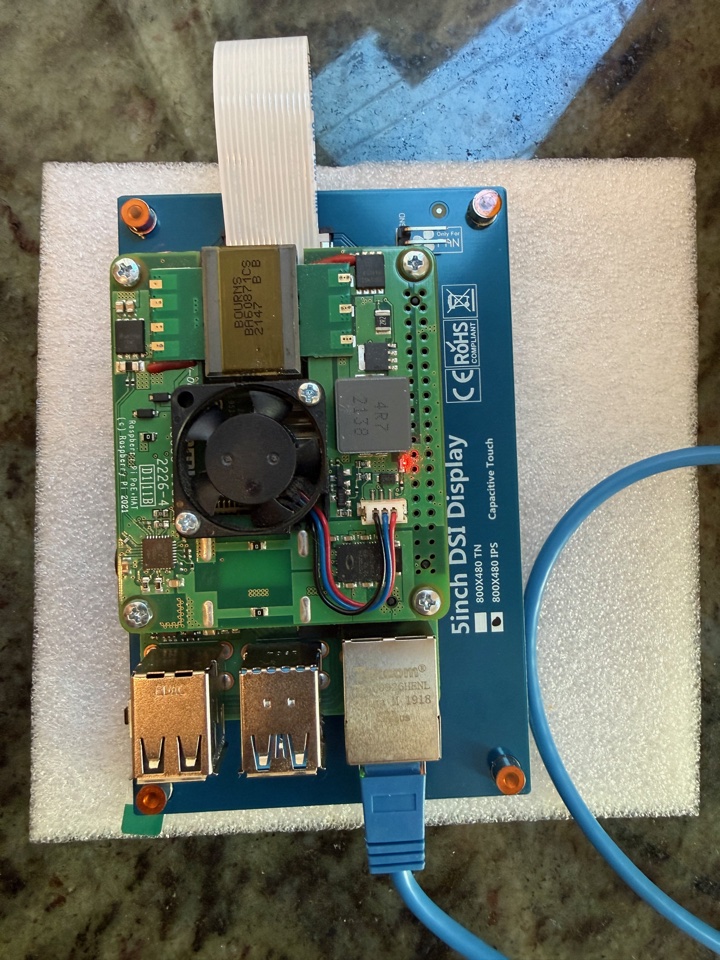
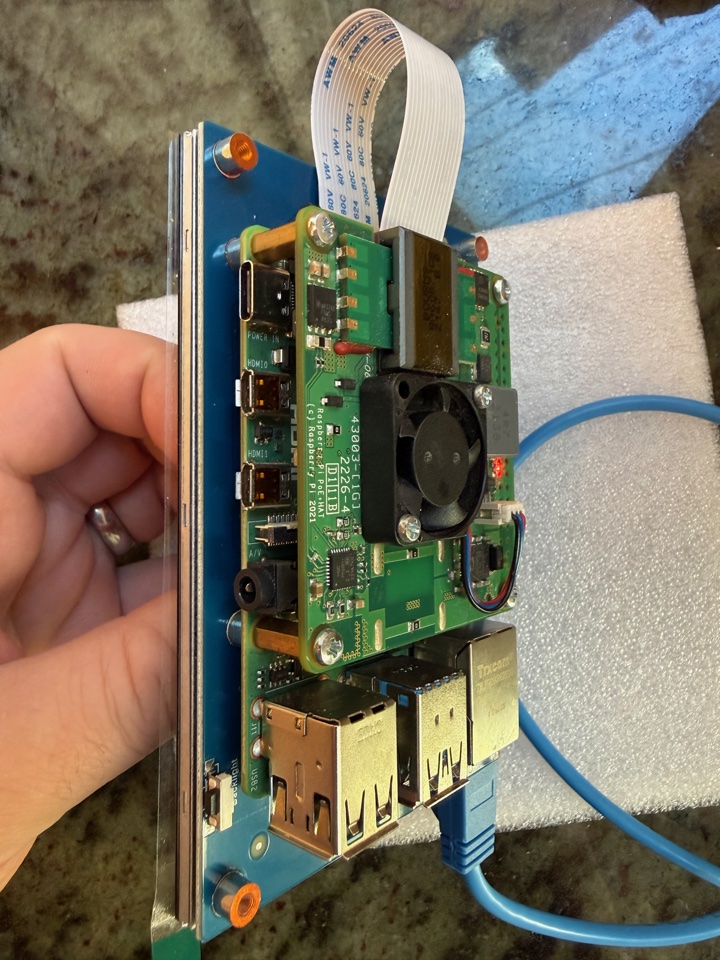
I already had the RPI4 and POE hat from another project so prices are likely higher now due to AI-driven RAM demand. The display connects over DSI for video and USB for touch input. Mounted portrait, the logical resolution is 480×800 with system-level rotation applied via mpv. The PoE HAT powers the Pi directly from the wall switch, keeping the cable run to a single Ethernet drop.
Software Stack
| Layer | Choice | Reason |
|---|---|---|
| Rendering | DRM/KMS (fkms) | No X11; framebuffer direct to DSI display |
| Player | mpv --vo=drm | Low-latency RTSP, software decode, no display server |
| Backlight | sysfs /sys/class/backlight | Kills backlight entirely without disrupting DRM |
| Touch input | evdev | Direct kernel input, no display server required |
| Doorbell events | Unifi Protect WebSocket | Native Protect API, no polling |
| Daemon | Python 3 asyncio | Clean state machine, concurrent event handling |
| Supervision | systemd | Start on boot, auto-restart, journald logging |
| Config | Ansible | Auto-deployable with no compiling or binaries |
State Machine
The daemon has two states: IDLE and ACTIVE.
IDLE:   screen backlight OFF, no playback, waiting for triggers
ACTIVE: screen ON, live RTSP stream playing, 45s sliding timeout
State transitions:
- Doorbell press → IDLE becomes ACTIVE (or resets the 45s timer if already ACTIVE)
- Touch while IDLE → becomes ACTIVE
- Touch while ACTIVE → immediately stops playback and turns screen off
- 45s timeout → stops playback, turns screen off, returns to IDLE
Backlight Control
The hardest constraint was "completely dark when idle." A black framebuffer isn't sufficient because the backlight is still on. The daemon controls brightness exclusively through sysfs:
/sys/class/backlight/rpi_backlight/brightnessWriting 0 kills the backlight entirely. Writing max_brightness restores it. This approach has two key properties: it
doesn't interfere with the DRM/KMS rendering pipeline (unlike vcgencmd display_power, which resets DRM planes and
breaks video output), and it works without root because the Ansible role adds a udev rule granting the video group
write access to the brightness file.
The fkms driver exposes the DSI panel as the DSI-1 connector. mpv is configured with --drm-connector=DSI-1 so it
targets the correct display without needing to guess device indices.
Unifi Protect Integration
The daemon authenticates directly against Unifi Protect's local API (no cloud) and holds a persistent WebSocket
connection to the event stream. It filters for ring events on the configured camera ID and ignores motion events
entirely.
One nuance is Protect's WebSocket can deliver multiple binary-framed packets concatenated in a single message. A naive implementation that reads only the first packet per message will silently drop events. The daemon loops through the full payload, extracting each packet until the buffer is exhausted.
Each packet has an 8-byte header:
[packet_type: 1B][payload_format: 1B][compression: 1B][unused: 1B][payload_size: 4B]Payload format 1 is JSON (action/data frames). Compression flag 1 means zlib-deflate. Ring events appear in action
frames with action: "add" and modelKey: "event", and in the corresponding data frame with type: "ring".
Connection handling is automatic reconnect with exponential backoff, no manual intervention required after a network disruption.
Video Playback
mpv plays the RTSP stream from Unifi Protect in fullscreen DRM/KMS mode with no window chrome. On the RPi4 with the
fkms driver, hardware decode via V4L2M2M causes segfaults, so the daemon uses --hwdec=no and software H.264 decode
which is fast enough for a 480p stream on a Pi 4.
The stream starts fresh on each ACTIVE transition as a cold start. mpv is launched as a subprocess and the daemon
waits for it to exit before returning to IDLE, whether from timeout, touch dismiss, or signal.
A few mpv flags that matter:
--vo=drm --drm-connector=DSI-1
--video-rotate=270          # portrait orientation
--hwdec=no                  # software decode required on fkms
--cache=yes --demuxer-max-bytes=1M
--loop=no                   # never replay cached content
--fullscreen --no-border --no-osc
Touch Input
Touch events are read via evdev. The daemon discovers the touch device dynamically by scanning all input devices and
matching on multitouch capability (ABS_MT_POSITION_X) and BTN_TOUCH but not on /dev/input/event* index, which can
shift after reboot. An optional name-match pattern (unifi_protect_viewport_touch_match) lets you pin to a specific
device if multiple touch devices are present.
Ansible Role
The entire deployment is
ansible-roles/unifi-protect-viewport. A single
ansible-playbook run on a fresh Ubuntu Server image:
- Creates a
unifi-protect-viewportsystem user withvideo,input,render, andttygroups - Installs
mpv,python3-evdev,python3-requests,python3-websockets - Writes the daemon binary, systemd service, and environment file from templates
- Adds a
udevrule granting the service user write access to the sysfs backlight - Configures
fbcon=map:99incmdline.txtto free the DRM device from the framebuffer console - Enables
dtoverlay=vc4-fkms-v3dfor the DSI connector - Optionally configures PoE HAT fan temperature thresholds
- Enables and starts the service
Debug Tool
The deployed system includes unifi-protect-viewport-debug for testing without ringing the actual doorbell:
unifi-protect-viewport-debug show          # turn display on
unifi-protect-viewport-debug hide          # turn display off
unifi-protect-viewport-debug test-display  # cycle backlight off -> 3s -> on
unifi-protect-viewport-debug test-touch    # list evdev touch devices and capabilities
unifi-protect-viewport-debug test-stream   # fetch RTSP URL and play via mpv
unifi-protect-viewport-debug test-protect  # verify Protect API auth and camera info
Bringup Notes
A few things that weren't obvious during hardware bring-up:
-
fbcon holds the DRM device. Without
fbcon=map:99incmdline.txt, the framebuffer console claims the DRM device and mpv exits with rc=2 (device busy). The kernel parameter redirects fbcon to a nonexistent VT, freeing card0 for mpv. -
fkms uses DSI-1, not HDMI-A-1. The firmware KMS driver uses different connector names than full KMS. Getting this wrong means mpv opens
/dev/dri/card0but outputs to nothing. -
vcgencmd display_power resets DRM planes. Using it to blank the display tears down the rendering pipeline, breaking subsequent mpv output. Sysfs brightness control avoids this entirely.
-
Hardware decode segfaults on fkms. V4L2M2M hardware decode crashes mpv on the Pi 4 with the firmware KMS driver.
--hwdec=nois required. Software decode handles 480p without issue. -
Protect WebSocket is multi-packet. A single WebSocket message may contain multiple concatenated binary packets. Reading only the first will silently drop ring events that arrive bundled with other packets.
Conclusion
The system boots to idle with the screen fully dark within a few seconds of the Pi coming up. A doorbell press to live video with one to two seconds for the RTSP stream to begin rendering. The display stays dark under normal conditions.
Compared to the ESP32 HomeKit intercom (which handles the legacy building buzzer and lock), this system handles the newer Unifi PoE doorbell. The two projects complement each other with the ESP32 handles the 1970s wired intercom hardware and the Pi viewport handles the modern networked camera.
Next up is designing a custom one-gang low voltage bracket mount to make the device look like a proper wall panel that's flush-mounted and a similar footprint to the Unifi Intercom Viewer it replaces in spirit.